How to Retrieve VICIdial Admin Password from MySQL Database

Losing or forgetting the VICIdial admin password is a common issue, especially when systems are handed over between teams or managed by multiple administrators. Fortunately, VICIdial stores user credentials in its MySQL database, and an administrator with server access can retrieve or reset the password directly from the database.

This article explains how to retrieve the VICIdial admin user password using MySQL, along with important security notes and best practices.


Prerequisites

Before proceeding, ensure you have:

  • SSH access to the VICIdial server
  • MySQL root or database administrator credentials
  • Permission to access the asterisk database
  • Basic knowledge of Linux command line

Important: This method should only be used on systems you own or are authorized to manage.


Step 1: Log in to the VICIdial Server

Connect to your VICIdial server using SSH:

ssh root@your_vicidial_server_ip

Step 2: Log in to MySQL

If your MySQL root user has no password:

mysql -u root

If your MySQL root user has a password (most systems do):

mysql -u root -p

You will be prompted to enter the MySQL root password.


Step 3: Select the VICIdial Database

VICIdial stores all configuration and user data in the asterisk database.

USE asterisk;

Step 4: Retrieve VICIdial User Passwords

Run the following query to list all VICIdial users and their passwords:

SELECT user, pass FROM vicidial_users;

Example Output

+----------+----------+
| user     | pass     |
+----------+----------+
| admin    | 1234     |
| manager  | test123  |
| agent001 | agentpw  |
+----------+----------+
  • The user column shows the VICIdial username
  • The pass column shows the password (usually stored in plain text on older versions)

Look for the admin user to retrieve the admin password.


Step 5: Log in to VICIdial Admin Panel

Open your browser and access the VICIdial admin URL:

http://your_server_ip/vicidial/admin.php

Use the retrieved username and password to log in.

Optional: Reset the Admin Password (Recommended)

If you prefer to reset the password instead of using the old one, run:

UPDATE vicidial_users 
SET pass='NewStrongPassword123' 
WHERE user='admin';

Then exit MySQL:

EXIT;

Use the new password to log in.


Security Considerations (Very Important)

  • Older VICIdial versions store passwords in plain text, which is insecure
  • Restrict MySQL and SSH access to trusted administrators only
  • Change the admin password immediately after recovery
  • Avoid using simple passwords like 1234 or admin
  • Consider limiting database access via firewall rules

Troubleshooting Tips

  • Access denied to MySQL
    • Verify MySQL root password
    • Check /etc/my.cnf or /etc/mysql/my.cnf
  • No admin user found
    • Run: SELECT user FROM vicidial_users;
  • Login still fails
    • Clear browser cache
    • Verify correct VICIdial URL
    • Check Apache and MySQL services are running

Conclusion

Retrieving a VICIdial admin password directly from the MySQL database is a straightforward process when you have proper server access. However, for security reasons, it is always best to reset the password immediately and follow strong credential management practices.

This method is invaluable for system recovery, audits, and inherited systems where credentials are missing.
Posted in Vicidial | Tagged , , , , , , , , | Leave a comment

How to Manage KVM Virtual Machines on Ubuntu Server Using virsh

Kernel-based Virtual Machine (KVM) is the most widely used virtualization technology on Linux servers. On Ubuntu Server, KVM is managed using libvirt, and the primary command-line tool provided by libvirt is virsh.

This guide explains how to manage KVM virtual machines on Ubuntu Server using virsh. It covers real-world examples such as starting and stopping virtual machines, enabling auto-start after reboot, accessing the VM console, monitoring resources, managing disks and networks, and troubleshooting common issues. This article is suitable for production environments.


What Is KVM Virtualization on Ubuntu Server

Overview of KVM and libvirt

KVM (Kernel-based Virtual Machine) is a Linux kernel module that allows the Linux kernel to act as a hypervisor. libvirt is a management layer that provides a unified API and tools to manage virtual machines, storage, and networking.

Why virsh Is Used for KVM Management

virsh is the official CLI tool for libvirt. It is lightweight, scriptable, and ideal for headless Ubuntu servers where a graphical interface is not required.


Prerequisites for Managing KVM Using virsh

Required Packages on Ubuntu Server

sudo apt update
sudo apt install qemu-kvm libvirt-daemon-system libvirt-clients bridge-utils -y

Verify libvirtd Service Status

sudo systemctl status libvirtd

How to List KVM Virtual Machines Using virsh

List Running Virtual Machines

virsh list

List All Virtual Machines

virsh list --all

How to Start, Stop, and Reboot KVM Virtual Machines

Start a Virtual Machine

virsh start vicidial

Gracefully Shutdown a Virtual Machine

virsh shutdown vicidial

Force Stop a Virtual Machine

virsh destroy vicidial

Reboot a Virtual Machine

virsh reboot vicidial

How to Enable Auto Start for KVM Virtual Machines on Boot

Enable Auto Start After Ubuntu Reboot

virsh autostart vicidial

Verify Auto Start Status

virsh dominfo vicidial | grep Autostart

Disable Auto Start

virsh autostart --disable vicidial

How to Access KVM Virtual Machine Console Using virsh

Connect to the VM Console

virsh console vicidial

To exit the console, press:

Ctrl + ]

How to Monitor CPU and Memory Usage of KVM Virtual Machines

Check Resource Usage

virsh domstats vicidial

Live Monitoring

watch virsh domstats vicidial

How to Edit KVM Virtual Machine Configuration

Edit VM XML Configuration

virsh edit vicidial

This allows you to modify CPU, memory, disks, network interfaces, and boot options. For major changes, always shut down the VM first.


How to Manage Disks and Network Interfaces in KVM

Attach a Disk to a Virtual Machine

virsh attach-disk vicidial /data/disk2.qcow2 vdb --persistent

Detach a Disk

virsh detach-disk vicidial vdb --persistent

Attach a Network Interface

virsh attach-interface vicidial bridge br0 --model virtio --persistent

How to Take and Restore Snapshots in KVM

Create a Snapshot

virsh snapshot-create-as vicidial snap_before_update

List Snapshots

virsh snapshot-list vicidial

Restore a Snapshot

virsh snapshot-revert vicidial snap_before_update

Troubleshooting KVM Virtual Machines on Ubuntu Server

Check libvirtd Logs

journalctl -u libvirtd

Check VM-Specific Logs

/var/log/libvirt/qemu/vicidial.log

Best Practices for Managing KVM Virtual Machines in Production

  • Enable auto-start for critical virtual machines
  • Use graceful shutdown instead of force stop
  • Take snapshots before upgrades or major changes
  • Monitor disk usage under /var/lib/libvirt
  • Use fast storage (SSD or NVMe) for VM disks

Conclusion

Managing KVM virtual machines on Ubuntu Server using virsh provides full control, automation capabilities, and production-level reliability. Whether you are running Linux servers, Windows servers, or call-center platforms, mastering virsh is essential for efficient KVM administration.

Posted in KVM | Tagged , , , , , , , , , , , , , , , | Leave a comment

Palo Alto UNAT Configuration – Step-by-Step Lab Guide (LAN → DMZ via WAN)

Introduction

In real-world enterprise networks, it is common to access DMZ servers using a public IP address, even from internal LAN users. This design improves consistency, simplifies DNS, and mirrors real internet access behavior.

In this blog, I will demonstrate User NAT / Destination NAT (UNAT) configuration on a Palo Alto Networks firewall using a practical lab setup with LAN, WAN, and DMZ zones.

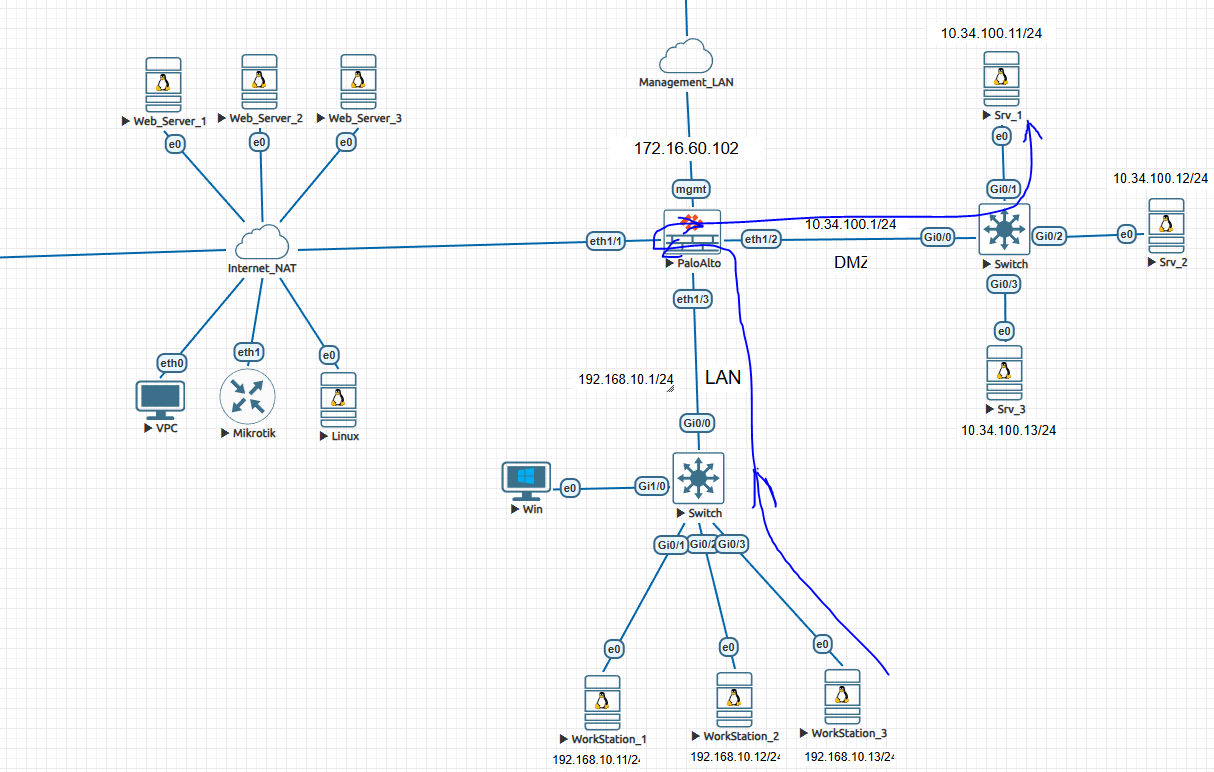
This guide explains how traffic from a LAN PC reaches a DMZ mail server using its public IP, with UNAT applied on the firewall.

Read more: Palo Alto UNAT Configuration – Step-by-Step Lab Guide (LAN → DMZ via WAN)

Zone and IP Design

ZoneNetworkPurpose
LAN192.168.10.0/24Internal users
WAN192.168.122.0/24Public / Outside zone
DMZ10.34.100.0/24Public-facing servers

Key IP Addresses Used

  • LAN PC: 192.168.10.x
  • WAN Interface IP (Firewall): 192.168.122.161
  • Public IP for Mail Server (UNAT): 192.168.122.172
  • DMZ Mail Server (Real IP): 10.34.100.12

Traffic Flow (High Level)

  1. LAN PC tries to access Mail Server using Public IP 192.168.122.172
  2. Traffic enters firewall from LAN zone
  3. Firewall applies Destination NAT (UNAT)
  4. Public IP is translated to DMZ server IP 10.34.100.12
  5. Security policy allows LAN → DMZ
  6. Session completes successfully

Step 1: Create Address Objects

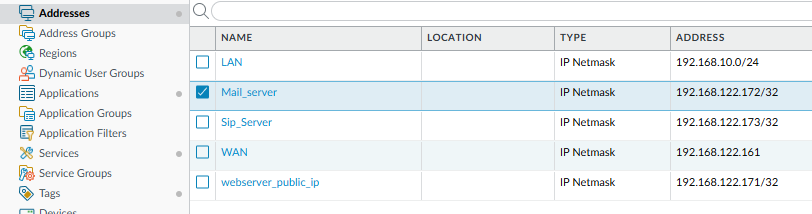
Objects → Addresses

Create the following objects:

NameTypeValue
LANIP Netmask192.168.10.0/24
Mail_serverIP Netmask192.168.122.172/32
Sip_ServerIP Netmask192.168.122.173/32
webserver_public_ipIP Netmask192.168.122.171/32

These objects will be reused in Security Policy and NAT Policy, which is a best practice in Palo Alto configurations.

Step 2: Create Security Policy (LAN → DMZ)

Navigate to:

Policies → Security

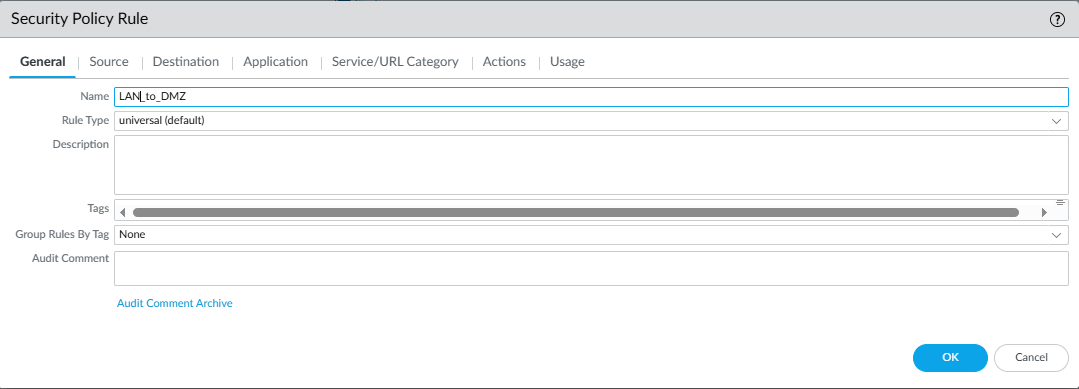
General Tab

  • Name: LAN_to_DMZ
  • Rule Type: Universal

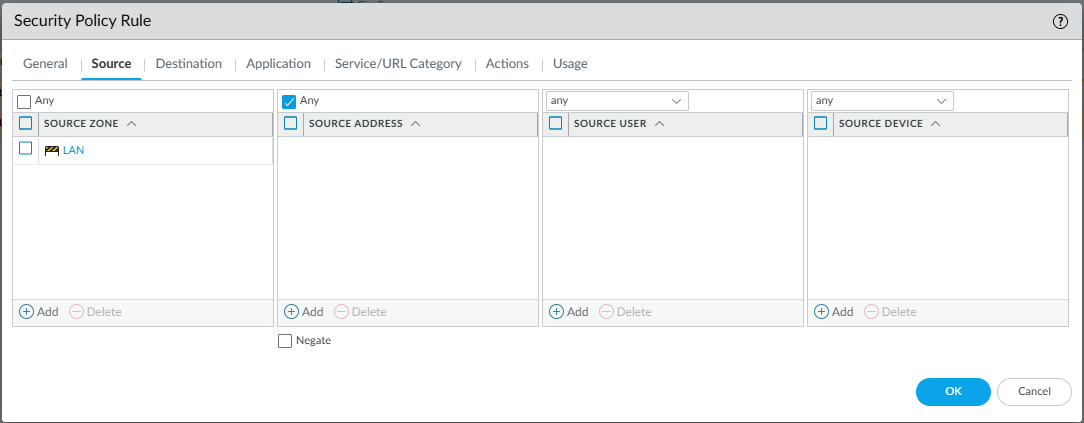
Source Tab

  • Source Zone: LAN
  • Source Address: Any

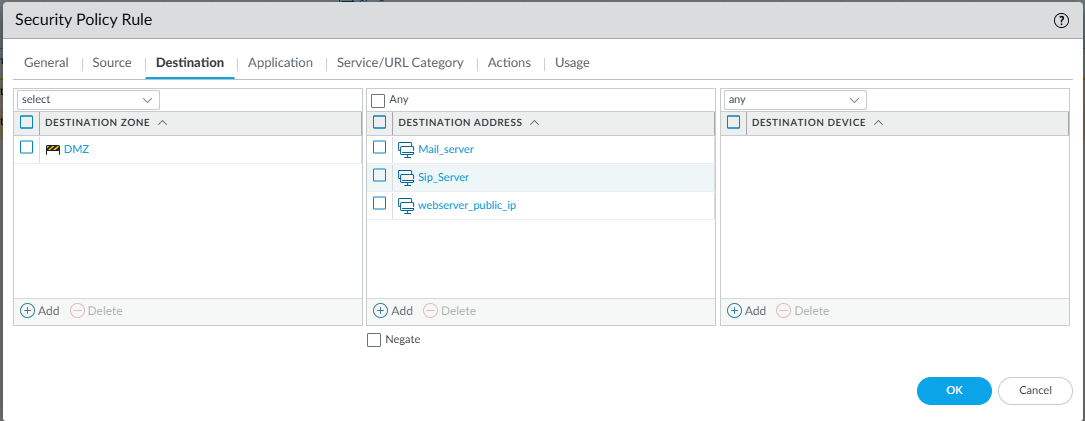
Destination Tab

  • Destination Zone: DMZ
  • Destination Address:
    • Mail_server
    • Sip_Server
    • webserver_public_ip

Application / Service

  • Application: any (can be restricted later)
  • Service: any

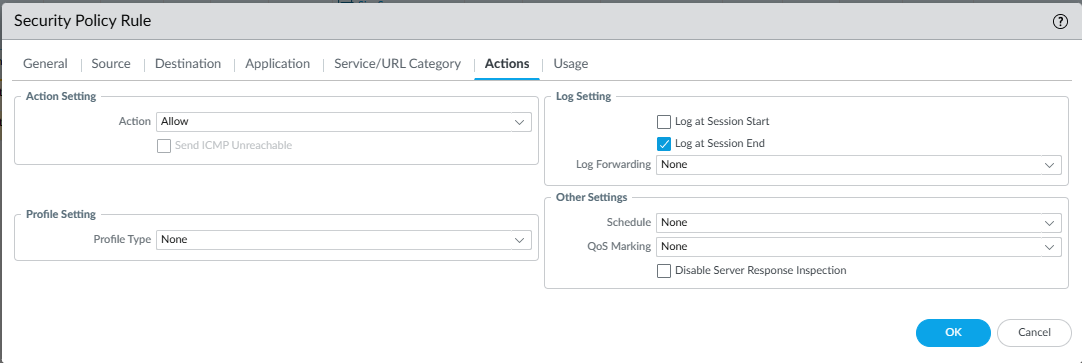
Action

  • Action: Allow
  • Log at Session End: Enabled

This rule ensures LAN users can access DMZ services once NAT translation occurs.

Step 3: Create UNAT (Destination NAT) Policy

Policies → NAT

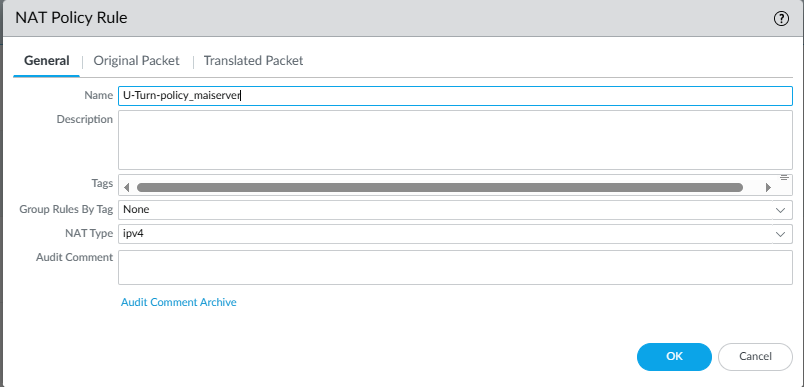
General Tab

  • Name: U-Turn-policy_mailserver
  • NAT Type: IPv4

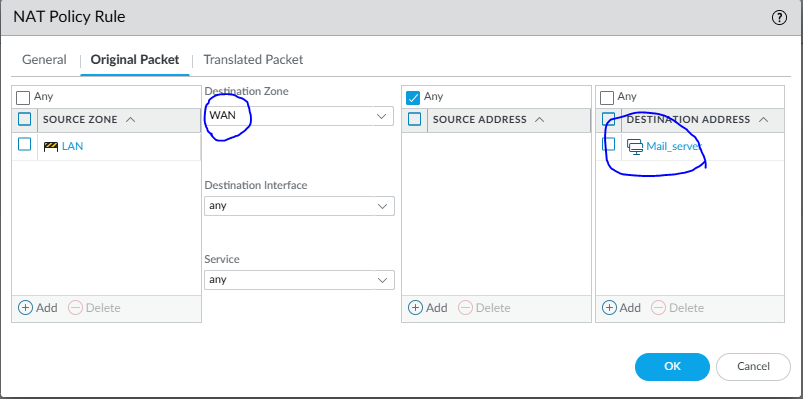
Original Packet Tab

FieldValue
Source ZoneLAN
Destination ZoneWAN
Destination AddressMail_server
Serviceany

This matches traffic from LAN users trying to reach the public IP.


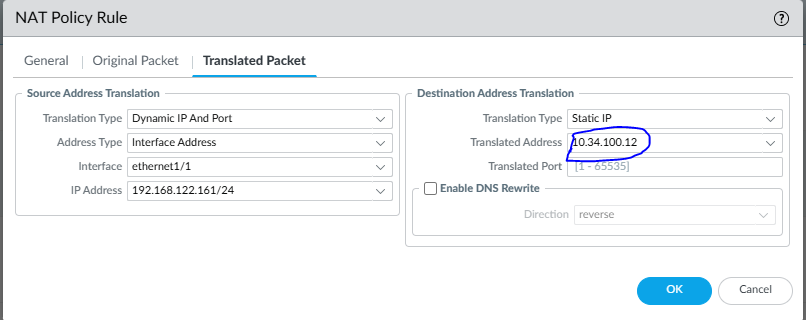
Translated Packet Tab

Source Address Translation (SNAT)

  • Type: Dynamic IP and Port
  • Address Type: Interface Address
  • Interface: ethernet1/1
  • IP Address: 192.168.122.161

Destination Address Translation (DNAT / UNAT)

  • Type: Static IP
  • Translated Address: 10.34.100.12
  • Translated Port: 1–65535

This is the core UNAT logic, where the public IP is mapped to the real DMZ mail server.

Step 4: Commit and Test

https://knowledgebase.paloaltonetworks.com/servlet/rtaImage?eid=ka14u000000DQgK&feoid=00N0g000003VPSv&refid=0EM0g000001ot3F&utm_source=chatgpt.com
https://theworldsgonemad.net/img/2022/palo-sessions/browser.png?utm_source=chatgpt.com

Testing from LAN PC

From a LAN workstation:

  • Ping or connect to 192.168.122.172
  • Verify access to Mail services
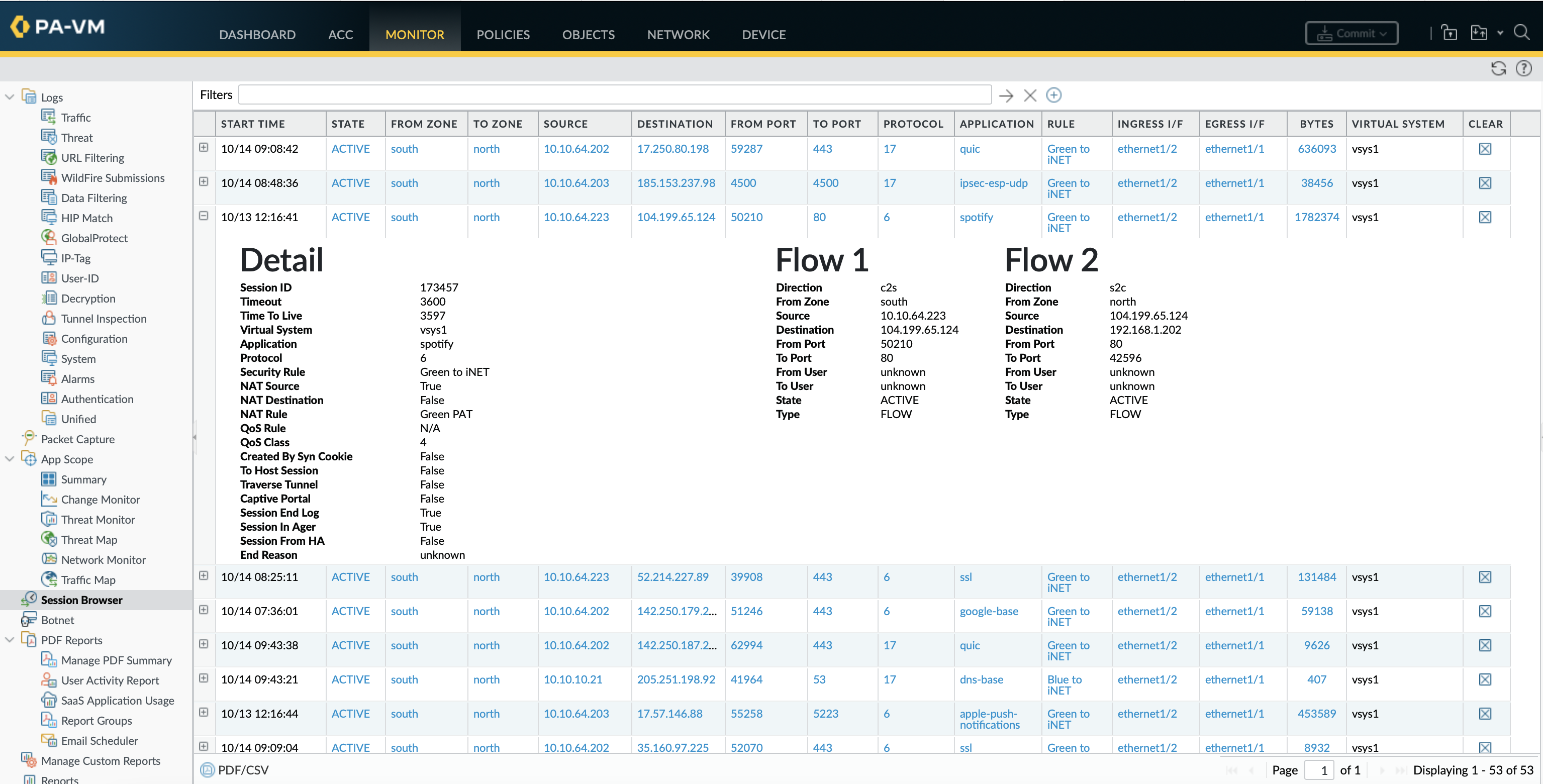
  • Check logs under:

Monitor → Traffic

You should see:

  • Destination IP translated from 192.168.122.17210.34.100.12
  • Source IP translated to firewall WAN interface IP

Why UNAT Is Important in Real Networks

  • Same public IP works internally and externally
  • DNS consistency (no split-DNS required)
  • Realistic production-grade firewall behavior
  • Essential for mail servers, SIP servers, web servers
  • Commonly used in banking, ISP, and enterprise DMZ designs

Common Mistakes to Avoid

  • Missing LAN → DMZ security rule
  • Incorrect destination zone in NAT policy
  • NAT rule placed below more generic rules
  • Forgetting SNAT for return traffic

Conclusion

This lab demonstrates a real-world Palo Alto UNAT deployment, where internal LAN users access DMZ servers using public IP addresses via WAN, exactly as traffic would behave from the internet.

If you are preparing for PCNSA / PCNSE, managing enterprise firewalls, or designing secure DMZ architectures, mastering UNAT is essential.

Posted in Paloalto Firewall | Tagged , , , , , , , , , , , , , , , , , , , | Leave a comment

Point-to-Point Wireless Devices Comparison: Practical Hardware Selection Guide

Point-to-point (PtP) wireless connectivity is a proven and widely used networking solution to connect two locations without laying fiber. It is commonly deployed for office-to-office connectivity, factories, warehouses, CCTV backhaul, ISPs, schools, and branch offices.

Choosing the correct point-to-point wireless hardware is critical for achieving stable performance, reliable bandwidth, and long-term scalability. This guide is based on real field experience shared by vendor engineers and system integrators.


What Is Point-to-Point Wireless Connectivity?

Point-to-point wireless connectivity uses directional radios and antennas to create a dedicated wireless bridge between two locations. It eliminates dependency on leased lines and fiber while delivering reliable throughput over long distances when designed correctly.

  • Requires clear Line of Sight (LOS)
  • Highly dependent on antenna alignment and Fresnel clearance
  • Cost-effective alternative to fiber

Corrected and Practical Device Comparison Table

Note: Throughput values represent realistic field-tested TCP performance, not theoretical speeds.

Device ModelPractical RangePractical ThroughputRecommended Use Case
MikroTik SXTsq Lite5Up to 5 km70–90 MbpsSmall offices, CCTV backhaul
MikroTik LHG 5Up to 10 km40–60 MbpsOffice interconnect, basic backhaul
MikroTik LHG XL HP5Up to 15 km40–60 MbpsHigh-noise environments
MikroTik LHG XL 5 acUp to 15 km90–120 MbpsHigher bandwidth office links
MikroTik NetMetal 5 + 30 dBi Dish25–30 km100–150 MbpsEnterprise and ISP backhaul
Mimosa C5xUp to 10 km400–500 MbpsHigh-capacity short-distance links
Mimosa C5c + 30 dBi Dish25–30 km180–250 MbpsLong-distance enterprise backhaul

MikroTik Point-to-Point Wireless Devices

MikroTik SXTsq Lite5

A compact and budget-friendly radio best suited for short-distance links. Ideal for small offices, temporary connectivity, and CCTV backhaul where bandwidth demand is moderate.

MikroTik LHG Series (LHG 5 / LHG XL HP5)

The LHG series is popular due to its integrated high-gain antenna. The HP variant performs better in noisy RF environments and rural deployments.

MikroTik LHG XL 5 ac

An improved AC-based model delivering higher throughput. Recommended where better speed and future scalability are required.

MikroTik NetMetal 5 with Dish Antenna

A modular enterprise-grade solution allowing antenna flexibility. Best used by experienced installers with proper RF planning.


Mimosa Point-to-Point Wireless Solutions

Mimosa C5x

A high-performance radio designed for low latency and high throughput. Suitable for ERP systems, video streaming, VoIP, and enterprise applications.

Mimosa C5c with 30 dBi Dish

Designed for long-distance and high-capacity backhaul. Widely used by ISPs and enterprises for mission-critical links.


Comparison with Other Wireless Brands

Ubiquiti Networks

  • airMAX Rocket Prism 5AC – Up to 200+ Mbps
  • airFiber 5XHD – 500+ Mbps over long distance

Pros: High throughput, wide user community
Cons: Firmware changes may affect stability

Cambium Networks

  • ePMP Force 300-25 – Up to 600 Mbps
  • PTP 550 – Carrier-grade performance

Pros: Excellent noise immunity, carrier-grade quality
Cons: Higher cost


How to Choose the Right Point-to-Point Wireless Hardware

  • Distance and clear line of sight
  • Required bandwidth (current and future)
  • RF noise level in the area
  • Mounting height and Fresnel zone clearance
  • Budget versus reliability expectations

Best Point-to-Point Wireless Device by Distance

  • Up to 5 km: MikroTik SXTsq Lite5
  • 10–15 km: MikroTik LHG XL HP5 / LHG XL 5 ac
  • 25–30 km: Mimosa C5c or NetMetal with dish
  • High-capacity backbone: Mimosa or Cambium

Conclusion

Point-to-point wireless connectivity is a reliable and scalable alternative to fiber when designed correctly. Real-world performance depends more on proper hardware selection, RF planning, and installation quality than on datasheet specifications.

For site survey, RF planning, deployment, and support, professional consultation ensures long-term stability and performance.

Need help with wireless deployment?
Contact us for professional point-to-point wireless solutions, VPN integration, and enterprise networking support.

Need a Reliable Point-to-Point Wireless Connection?

We design, supply, and deploy professional point-to-point wireless solutions for offices, factories, CCTV networks, ISPs, and multi-branch businesses. 📞 WhatsApp Us 📩 Request Site Survey

Posted in Mikrotik, Network | Tagged , , , , , , , , , , , , , , , , , , , | Leave a comment

Excitel Broadband Router Default Login

Excitel Broadband Default Router Login

If you have an Excitel-provided router and need to access its admin page, many devices are shipped with default credentials you can use to sign in. Default username: excitelDefault password: exc@123

Step-by-step: How to log in

  1. Connect a PC or smartphone to the router network — either via Wi-Fi or using an Ethernet cable.
  2. Open your web browser and enter the router’s IP address in the address bar. Common router IPs are:
    • http://192.168.0.1
    • http://192.168.1.1
    • http://10.0.0.1
    If those don’t work, go to your computer’s network settings and check the “Default Gateway” — that is the router IP.
  3. On the login page, enter: Username: excitel Password: exc@123
  4. Click Login or Sign In. You should now be in the router’s admin interface.

Important — secure your router immediately

Default credentials are widely known. After logging in for the first time, do the following right away:

  • Change the admin password to a strong, unique password (use a mix of letters, numbers and symbols).
  • Change the Wi-Fi SSID and Wi-Fi password (use WPA2 or WPA3 if available).
  • Disable remote admin if you don’t need to manage the router from outside your network.
  • Update firmware if an update is available to fix security bugs and improve performance.
  • Enable a guest Wi-Fi network for visitors so you don’t share your main network password.
  • Backup your configuration after you finish settings changes, so you can restore them quickly if needed.

If you can’t log in

  • Confirm you are connected to the correct router network.
  • Verify the router IP (check the default gateway on your device).
  • If the default credentials don’t work, the ISP or previous user may have changed them — try contacting Excitel support.
  • As a last resort, you can factory reset the router (usually by pressing and holding the reset button for ~10 seconds) — note this will erase all settings and you’ll need to reconfigure the router.

Security tips

  • Never share admin passwords publicly.
  • Use a password manager to store strong passwords.
  • Periodically check for firmware updates and change passwords every 6–12 months.

Need help changing a specific setting (Wi-Fi password, port forwarding, DNS, or firmware)? Tell me your router model and I’ll give step-by-step instructions.

Posted in Network | Leave a comment

FortiGate Tip: How to Change WAN Web Access Port After Configuring IPsec VPN

When you configure an IPsec Site-to-Site VPN on a FortiGate firewall (especially models like 40F, 60F, 80F), you may suddenly lose access to the web GUI on the WAN interface (port 443).
FortiGate also shows a warning during IPsec setup that HTTPS access on the WAN may be affected.

This happens because the VPN configuration can modify interface roles, local-in policies, and route priorities — which sometimes blocks the default management port (443).


Solution: Change the WAN Web Administration Port

To restore access to the GUI, you can simply change the default HTTPS port to another port (for example, 8443).

Step 1: Connect to the firewall using SSH

Use any SSH client:

ssh admin@<WAN-IP>

Step 2: Change the HTTPS (GUI) Port

Run the following commands:

config system global
set admin-sport 8443
end

This will move the web GUI from port 443 to 8443.

You can now access the GUI using:

https://<WAN-IP>:8443

Step 3: Ensure WAN Allows HTTPS Management

Verify that your WAN interface has HTTPS enabled:

config system interface
edit wan
set allowaccess ping https http ssh
end

If HTTPS is not allowed, you will not be able to access the GUI even with the new port.


🛑 Why This Happens

When you configure an IPsec tunnel:

  • The firewall may add local-in rules for VPN services
  • Port 443 may be reserved for SSL-VPN
  • Administrative access settings may reset
  • Routing priority for WAN changes

As a result, HTTPS on port 443 becomes unavailable from the WAN, but SSH remains accessible.


🎯 Tip

Always keep SSH access enabled on WAN so you can recover remotely in case GUI access is blocked.


✔️ Final Result

After changing the admin port, your web interface will work again on:

👉 https://your-public-IP:8443

This simple fix restores full GUI management even after configuring IPsec VPN.

Posted in Network | Tagged , , , , , , , , , , , , , , , , , , , , , , , , , , , | Leave a comment

How to Configure Site-to-Site IPsec VPN Between Two FortiGate 40F Firewalls (FortiOS v6 and v7)

Connecting branch offices or partners through a secure VPN tunnel is one of the most common FortiGate tasks.
This guide shows how to configure a manual IPsec site-to-site VPN between two FortiGate 40F units running different firmware versions:

SiteModelFirmware
Site BFortiGate-40Fv7.6.3, build 3510 (GA.F)
Site CFortiGate-40Fv6.4.7, build 8726 (GA)

🧩 Network Plan

ParameterSite BSite C
WAN IP172.16.10.109172.16.10.111
LAN Subnet192.168.20.0/24192.168.30.0/24
Tunnel Namevpn-to-SiteCSiteB
Pre-Shared KeyForti@123Forti@123

⚙️ Step 1 – Create Phase 1 Interface (IKE Negotiation)

📍 Site B ( FortiOS v7.x )

config vpn ipsec phase1-interface
    edit "vpn-to-siteC"
        set interface "wan"                 # WAN interface carrying IKE
        set ike-version 2                   # IKEv2 (default in v7)
        set peertype any
        set net-device disable
        set proposal aes256-sha256          # Encryption / authentication
        set dhgrp 14                        # Diffie-Hellman group
        set transport auto                  # <— New in FortiOS 7.x, auto-selects UDP 500/4500
        set remote-gw 172.16.10.111         # Peer’s WAN IP
        set psksecret "Forti@123"           # Shared key
    next
end

📍 Site C ( FortiOS v6.x )

config vpn ipsec phase1-interface
    edit "SiteB"
        set interface "wan"
        set ike-version 2
        set peertype any
        set net-device disable
        set proposal aes256-sha256
        set dhgrp 14
        # ❌ 'set transport' not available in v6.x
        set remote-gw 172.16.10.109
        set psksecret "Forti@123"
    next
end

📝 Explanation:

  • Phase 1 defines how the two peers authenticate and exchange encryption keys.
  • ike-version 2 → modern and more stable.
  • dhgrp must match on both sides.
  • transport (v7 only) automatically handles NAT-Traversal; in v6 FortiGate does it by default when needed.

⚙️ Step 2 – Create Phase 2 Interface (Traffic Selectors)

📍 Site B (v7)

config vpn ipsec phase2-interface
    edit "Site_C"
        set phase1name "vpn-to-siteC"
        set proposal aes256-sha256
        set src-subnet 192.168.20.0 255.255.255.0
        set dst-subnet 192.168.30.0 255.255.255.0
    next
end

📍 Site C (v6)

config vpn ipsec phase2-interface
    edit "Site_B"
        set phase1name "SiteB"
        set proposal aes256-sha256
        set src-subnet 192.168.30.0 255.255.255.0
        set dst-subnet 192.168.20.0 255.255.255.0
    next
end

📝 Explanation:

  • Phase 2 defines which networks are encrypted inside the tunnel.
  • Subnets must mirror each other (local ↔ remote).

⚙️ Step 3 – Add Firewall Policies

Both sides need two policies:

  • LAN → VPN
  • VPN → LAN

📍 Site B (v7)

config firewall policy
    edit 0
        set name "LAN-to-SiteC"
        set srcintf "lan"
        set dstintf "vpn-to-siteC"
        set srcaddr "all"
        set dstaddr "all"
        set action accept
        set schedule "always"
        set service "ALL"
        set nat disable
    next
    edit 0
        set name "SiteC-to-LAN"
        set srcintf "vpn-to-siteC"
        set dstintf "lan"
        set srcaddr "all"
        set dstaddr "all"
        set action accept
        set schedule "always"
        set service "ALL"
        set nat disable
    next
end

📍 Site C (v6)

config firewall policy
    edit 0
        set name "LAN-to-SiteB"
        set srcintf "lan"
        set dstintf "SiteB"
        set srcaddr "all"
        set dstaddr "all"
        set action accept
        set schedule "always"
        set service "ALL"
        set nat disable
    next
    edit 0
        set name "SiteB-to-LAN"
        set srcintf "SiteB"
        set dstintf "lan"
        set srcaddr "all"
        set dstaddr "all"
        set action accept
        set schedule "always"
        set service "ALL"
        set nat disable
    next
end

📝 Explanation:

  • NAT must be disabled so that private subnets pass unmodified.
  • Policies are stateful—responses automatically return.

⚙️ Step 4 – Add Static Routes

Each site needs a route to the opposite LAN through the VPN interface.

📍 Site B

config router static
    edit 0
        set dst 192.168.30.0 255.255.255.0
        set device "vpn-to-siteC"
    next
end

📍 Site C

config router static
    edit 0
        set dst 192.168.20.0 255.255.255.0
        set device "SiteB"
    next
end

⚙️ Step 5 – Bring Up and Verify the Tunnel

Check tunnel summary

get vpn ipsec tunnel summary

Detailed info

diagnose vpn tunnel list

Force tunnel initiation

diagnose vpn tunnel up name vpn-to-siteC

Test reachability

execute ping-options source 192.168.20.1
execute ping 192.168.30.1

🧠 Step 6 – Debug If Tunnel Fails

diagnose debug reset
diagnose vpn ike log-filter clear
diagnose vpn ike log-filter dst-addr4 172.16.10.111
diagnose debug application ike -1
diagnose debug enable

Look for:

  • no proposal chosen → mismatch in Phase 1/2 encryption.
  • AUTHENTICATION_FAILED → wrong pre-shared key.
  • invalid id information → subnet mismatch.

Stop debug:

diagnose debug disable

🧰 Optional: Stability Enhancements (v7 and v6)

config vpn ipsec phase1-interface
    edit "vpn-to-siteC"
        set dpd on-idle
        set keylife 28800
        set keepalive enable
    next
end

📋 Version Differences Quick Reference

Commandv7.xv6.xDescription
set transport autoControls NAT-T / UDP encapsulation (v7+)
set ike-version 2Enables IKEv2
set net-device disableUse interface-mode VPN
set dpd on-idleDead Peer Detection
set psksecret "..."Shared key
set proposal aes256-sha256Cipher / hash pair

🧾 Final Verification Checklist

TestCommandExpect
Tunnel statusget vpn ipsec tunnel summaryup/active
Routing tableget router info routing-table allRemote LAN via VPN
Ping testexecute ping 192.168.30.1Success
Logdiagnose vpn tunnel listEstablished = yes

✅ Summary

With these CLI commands, any engineer—junior or senior—can configure a secure, working site-to-site IPsec VPN between different FortiGate firmware versions.
The key is to mirror Phase 1/2 parameters, ensure no NAT, and verify routing and policies.

Posted in Network | Tagged , , , , , , , , , , , , , , , , | Leave a comment

How to configure Tata SIP trunks in VICIdial — registered and peer setups (safe examples)

Quick overview: Register vs Peer

Registration (client registers to provider)

  • Your VICIdial server authenticates to the provider by sending a REGISTER.
  • Useful when provider expects a dynamic/unknown IP on your side or requires auth.
  • You’ll typically provide username, secret, and a register => string.

Peer / No registration

  • Provider accepts calls from your server IP without you performing SIP REGISTER.
  • You configure the provider as a SIP peer (host=provider.domain), and they accept INVITEs from your IP.
  • Preferred for fixed-IP servers — slightly simpler and often more reliable for direct routing.

Before you start — redaction note

All examples below use placeholders:

  • EXAMPLE_IP, PROVIDER_HOST, +91XXXXXXXXXX, and secret_xxx instead of any real IPs, hostnames, usernames, or passwords.
  • Replace placeholders only when you are ready to deploy and after applying the security checklist.

1) Example — Peer (no registration) trunk (redacted)

VICIdial Carrier (Account Entry) — set Protocol = SIP

[provider_out]
type=peer
fromuser=+91XXXXXXXXXX
username=+91XXXXXXXXXX@provider.example
secret=secret_xxx
host=provider.example
qualify=no
canreinvite=no
insecure=port,invite
send_pai=yes
direct_media=yes

Globals string (in VICIdial globals field)

provider_out=sip/provider_out

Dialplan example (redacted)

; international numbers starting with 91
exten => _91XXXXXX.,1,AGI(agi://127.0.0.1:4577/call_log)
exten => _91XXXXXX.,n,Dial(${provider_out}/0${EXTEN:2},55,o)
exten => _91XXXXXX.,n,Hangup()

; local numbers
exten => _XXXX.,1,AGI(agi://127.0.0.1:4577/call_log)
exten => _XXXX.,n,Dial(${provider_out}/${EXTEN},55,o)
exten => _XXXX.,n,Hangup()

Notes

  • host=provider.example should be the SIP host given by the provider.
  • fromuser / username are often required to set the calling identity the provider expects — confirm with provider docs.

2) Example — Registered trunk (redacted)

Registration string (VICIdial Carrier -> Registration String field)

register => +91XXXXXXXXXX@provider.example:00000:+91XXXXXXXXXX@provider.example@EXAMPLE_IP/ +91XXXXXXXXXX

(Replace with provider-supplied register => formatted string.)

VICIdial Carrier (Account Entry)

[provider_reg]
host=EXAMPLE_IP
username=+91XXXXXXXXXX@provider.example
secret=secret_yyy
type=friend
disallow=all
allow=alaw
dtmfmode=rfc2833
nat=force_rport,comedia
canreinvite=no
context=trunkinbound
insecure=port,invite
fromdomain=EXAMPLE_IP

Globals string (in VICIdial globals field)

TESTSIPTRUNK = SIP/provider_reg

Dialplan (redacted)

exten => _9X.,1,AGI(agi://127.0.0.1:4577/call_log)
exten => _9X.,n,SipAddHeader(P-Preferred-Identity: <sip:${CALLERID(num)}@EXAMPLE_IP>)
exten => _9X.,n,Dial(SIP/provider_reg/0${EXTEN:1},55,tTo)
exten => _9X.,n,Hangup()

Notes

  • Registered trunks may require fromdomain or SipAddHeader modifications so the provider sees the expected calling identity.
  • If provider required registration, they supplied the register string — copy it into VICIdial’s Registration String field.

Step-by-step in VICIdial GUI (summary)

  1. Admin → Carriers → Add new carrier.
  2. Carrier Name: tata trunk (peer) or tata trunk (reg) (your choice).
  3. Protocol: SIP
  4. Registration String: (only for registered trunk — paste provider register => ... here)
  5. Account Entry: put the redacted peer/friend block shown above.
  6. Globals String: set a name like tataout=sip/tataout
  7. Dialplan Entry: paste your dialplan lines (redacted examples above).
  8. Server IP: select your VICIdial server (or 0.0.0.0 for all)
  9. Submit → Rebuild config / reload Asterisk (follow VICIdial server restart/reload steps if required).

Common troubleshooting tips

  • After making changes run: asterisk -rx "sip show peers" (or pjsip show endpoints) to verify trunks are visible.
  • For registered trunk: check sip show registry to see if registration is successful.
  • Use asterisk -rvvvvv and place a call to watch the SIP dialog for 401/403 errors (auth failure) or 503 (provider issue).
  • If RTP (audio) is one-way: check NAT settings and direct_media/canreinvite. For NAT, nat=force_rport,comedia usually helps.
  • If provider rejects calls from unexpected IP, ensure your outbound public IP is what provider has on record. For dynamic IPs, registration is usually needed.

Security checklist (do these before deploying)

  1. Change all default secretssecret=secret_xxx must be strong and unique.
  2. IP allowlist — firewall: allow SIP/UDP only to/from provider IPs and your trusted admin IPs. Block SIP from the public internet except provider addresses.
  3. Use TLS/SRTP if provider supports it — encrypts signaling and media.
  4. Disable unused codecs — allow only required codecs to reduce attack surface.
  5. Limit registration attempts — use fail2ban or similar to block brute force attempts on SIP ports.
  6. Use ACLs on provider side — if your provider supports IP-ACLs, register your server IP and disable registrations from other IPs.
  7. Avoid exposing port 5060 to the entire internet — if you must, move SIP to a non-standard port and harden firewalls.
  8. Log & monitor — enable CDRs, SIP logs and regularly check for anomalous call patterns.
  9. Apply OS updates and keep Asterisk/VICIdial patched.

Example filenames & where they go (for advanced users)

  • Carrier settings are stored in VICIdial (Admin → Carriers).
  • Dialplan/Ghost lines will be installed into /etc/asterisk/extensions.conf or included via VICIdial templates — VICIdial will generate the correct includes on Submit + Server Rebuild.

Common errors & quick fixes

  • 403 Forbidden — check username/secret and fromdomain. Provider may require exact fromuser formatting.
  • 401 Unauthorized — wrong credentials or auth realm mismatch.
  • No audio — check NAT settings (nat=...), direct_media, and RTP port ranges in firewall.
  • Registration flaps — check network stability, and provider rate-limits.
Posted in IP Telephony | Tagged , , , , , , , | Leave a comment

🛠️ VICIdial 11 AGI Error Fix: “Failed to execute /usr/share/asterisk/agi-bin/agi-DID_route.agi”

🔍 Problem Description

While configuring or running VICIdial 11, you may encounter the following error in your Asterisk logs:

== Using SIP RTP CoS mark 5
> 0x7fa45402fae0 -- Strict RTP learning after remote address set to: 172.16.10.222:17358
-- Executing [5101@trunkinbound:1] AGI("SIP/JIO-00000001", "agi-DID_route.agi") in new stack
[Oct 15 12:10:38] WARNING[8597][C-00000002]: res_agi.c:2218 launch_script: Failed to execute '/usr/share/asterisk/agi-bin/agi-DID_route.agi': File does not exist.
-- Executing [5101@trunkinbound:2] Hangup("SIP/JIO-00000001", "") in new stack
== Spawn extension (trunkinbound, 5101, 2) exited non-zero on 'SIP/JIO-00000001'
[Oct 15 12:10:38] WARNING[8597][C-00000002]: func_hangupcause.c:138 hangupcause_read: Unable to find information for channel
-- Executing [h@trunkinbound:1] AGI("SIP/JIO-00000001", "agi://127.0.0.1:4577/call_log--HVcauses--PRI-----NODEBUG-----16--------------------)") in new stack
-- <SIP/JIO-00000001>AGI Script agi://127.0.0.1:4577/call_log--HVcauses--PRI-----NODEBUG-----16--------------------) completed, returning 0

⚠️ Cause of the Error

This error occurs because the AGI directory (/usr/share/asterisk/agi-bin/) or the AGI scripts (like agi-DID_route.agi) are missing.
These AGI files are essential for inbound call routing in VICIdial.

🧩 Solution Steps

Follow these commands to fix the issue:

# Create the AGI directory if it doesn’t exist
mkdir /usr/share/asterisk/agi-bin

# Go to the VICIdial AGI source directory
cd /usr/src/astguiclient/trunk/agi/

# Copy all AGI files to the correct directory
cp *.* /usr/share/asterisk/agi-bin/

# Set proper permissions
cd /usr/share/asterisk/agi-bin/
chmod 755 *.*

After performing these steps, restart Asterisk:

service asterisk restart

Now, VICIdial should be able to execute agi-DID_route.agi without errors, and your inbound calls will route correctly.


✅ Final Check

You can verify that the files are properly placed by running:

ls -l /usr/share/asterisk/agi-bin/

You should see multiple .agi scripts like:

agi-DID_route.agi
agi-VDAD_ALL_outbound.agi
agi-NVA_recording.agi
...

If these scripts are present and executable, the problem is resolved.


📌 Conclusion

This error is common after restoring or freshly installing VICIdial 11, especially if the /usr/share/asterisk/agi-bin/ directory is missing. Copying the AGI scripts and setting the correct permissions fixes the issue quickly.

Posted in IP Telephony | Tagged , , , , , , , , , | Leave a comment

Fix: “Allowed Inbound Groups” Not Showing in VICIdial Campaigns

If you’re setting up inbound or blended campaigns in VICIdial and you notice that the “Allowed Inbound Groups” option is missing or not appearing, don’t worry — it’s a common issue that can be easily fixed by checking two key campaign settings.


🔍 Step 1: Check Allow Inbound and Blended Setting

Go to your VICIdial Admin Panel and open the campaign you are working on.
Find the option “Allow Inbound and Blended”.

  • If it’s set to “N” (No), the system will hide all inbound group options.
  • Change it to “Y” (Yes) to allow the campaign to handle both inbound and outbound calls.

Correct setting:

Allow Inbound and Blended: Y

Once you enable this, VICIdial will allow agents in the campaign to handle inbound calls, and the “Allowed Inbound Groups” section will become visible.


🔧 Step 2: Verify Dial Method is Not Set to Manual

If you’ve already enabled inbound/blended mode but the inbound groups still don’t appear, check your Dial Method.

Go to:

Campaigns → Modify Campaign → Dial Method

If the dial method is set to “MANUAL”, VICIdial won’t activate inbound or blended functionality.

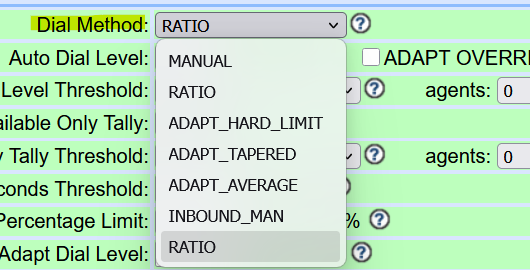
Change the Dial Method to one of the following:

  • RATIO
  • ADAPT_HARD_LIMIT
  • ADAPT_TAPERED
  • ADAPT_AVERAGE
  • INBOUND_MAN

Recommended setting for blended campaigns:

Dial Method: RATIO

After saving these changes, refresh the campaign settings — you’ll now see your Allowed Inbound Groups list appear, and you can select the inbound queues you want agents to handle.


🧠 Why This Happens

In VICIdial, inbound group visibility depends on how the campaign is configured.
If the system detects a manual-only campaign or a non-blended configuration, it automatically hides inbound group options to prevent conflicts with outbound-only logic.

So, both the following must be true:

  1. Allow Inbound and Blended = Y
  2. Dial Method ≠ MANUAL

Only then will the Allowed Inbound Groups section appear and work correctly.


📸 Example Screenshots

  • Allowed Inbound Groups section
    (shows available inbound queues like AGENTDIRECT or custom groups such as LKClinic)
  • Allow Inbound and Blended option
    (must be set to Y)
  • Dial Method selection
    (should not be MANUAL — use RATIO or ADAPT)

✅ Summary of Fix

IssueSolution
Allowed Inbound Groups not visibleSet “Allow Inbound and Blended” to Y
Option still missingChange “Dial Method” from MANUAL to RATIO or ADAPT
Inbound calls not routingCheck campaign and agent inbound group assignment

💡 Final Tip

After applying these settings, always reload the campaign and test with a logged-in agent to confirm inbound call routing works correctly.
If inbound calls still don’t connect, check your Inbound DID configuration and ensure that the DID is routed to the correct Inbound Group.

Posted in Vicidial | Tagged | Leave a comment